Who creates accounts
TDMP has no sign-up page. Accounts are created for you by an RTB administrator, because access is tied to a real job at a real institution and has to be checked by a person first.
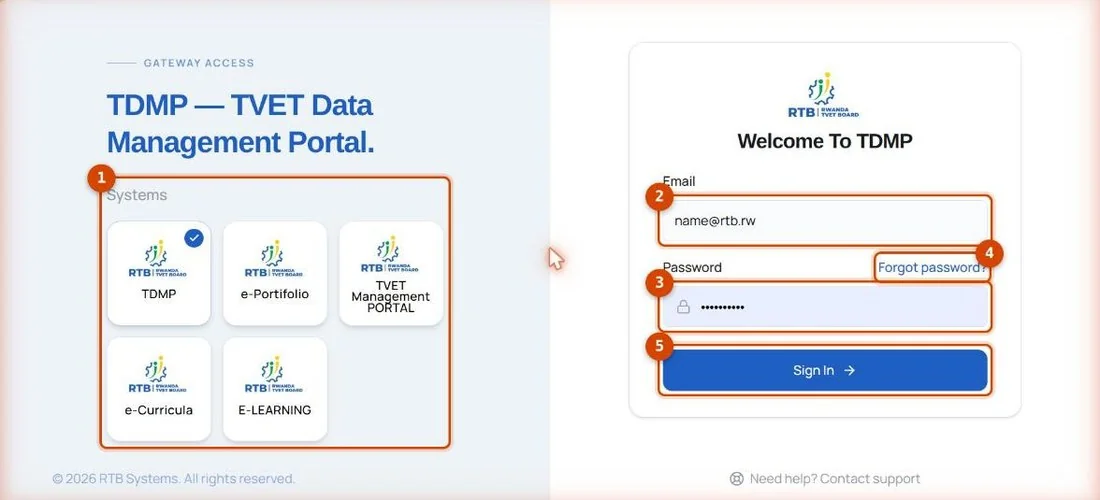
The sign-in screen has no “create account” link, and that is deliberate — there is nothing you are missing.
Ask your school or district administrator, or whoever manages TDMP for your institution. If you do not know who that is, use “Need help? Contact support” at the bottom of the sign-in screen.
What to send them
Have these ready. It saves a round of e-mails.
| What | Why it is needed |
|---|---|
| Your full name | It appears on the account and on anything you export. |
| A work e-mail address | This becomes your username, and every reset link goes to it. |
| Your institution | The school, district or RTB office you work for. |
| Your role | What you do decides which dashboards and reports you can open. |
The invitation e-mail
When the account is ready you get an invitation e-mail. It contains a link, and the link is what turns the account on — until you follow it, there is no password and you cannot sign in.
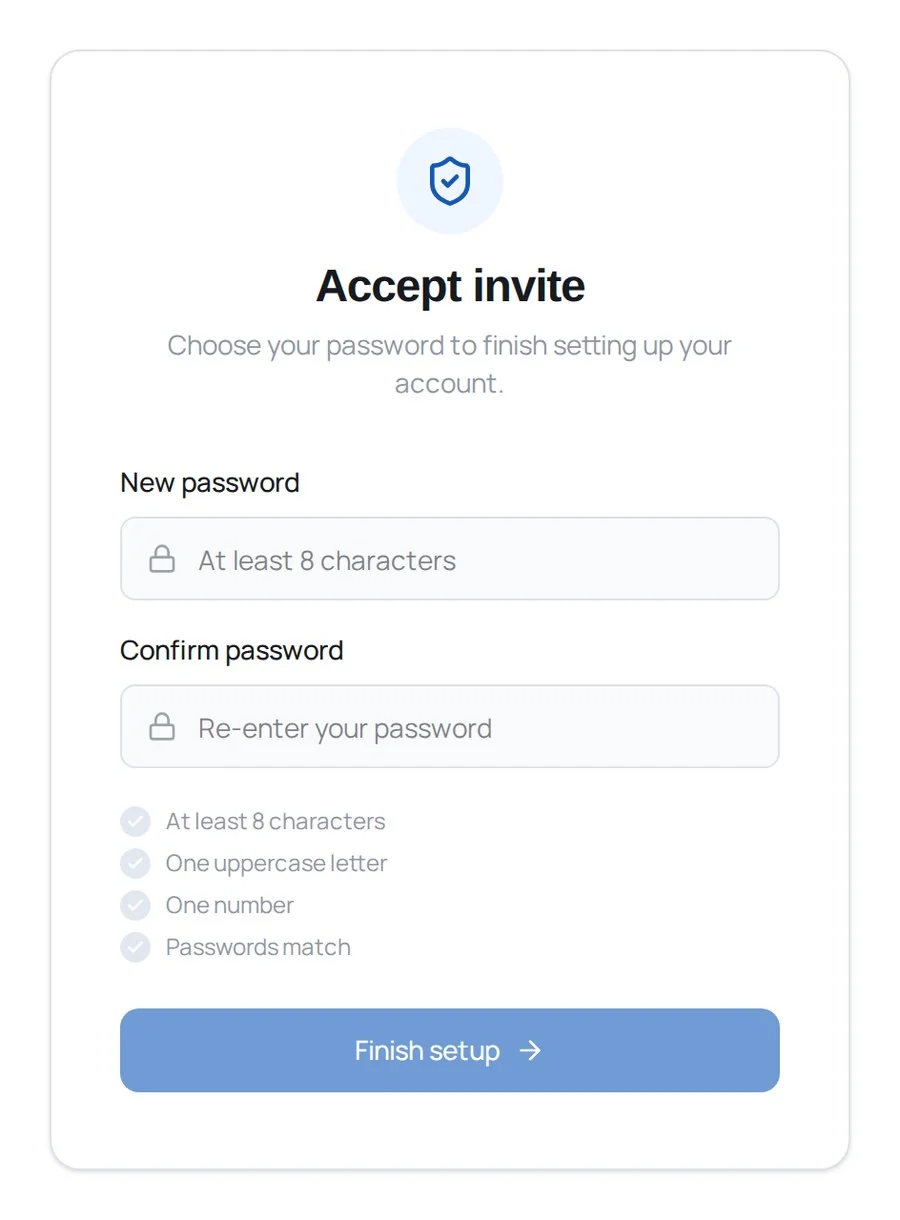
The link opens this. Choose a password; the four rules underneath tick themselves off as you type, and Finish setup stays grey until all four are green.
- At least 8 characters
- One uppercase letter
- One number
- Both boxes match
Your first sign-in
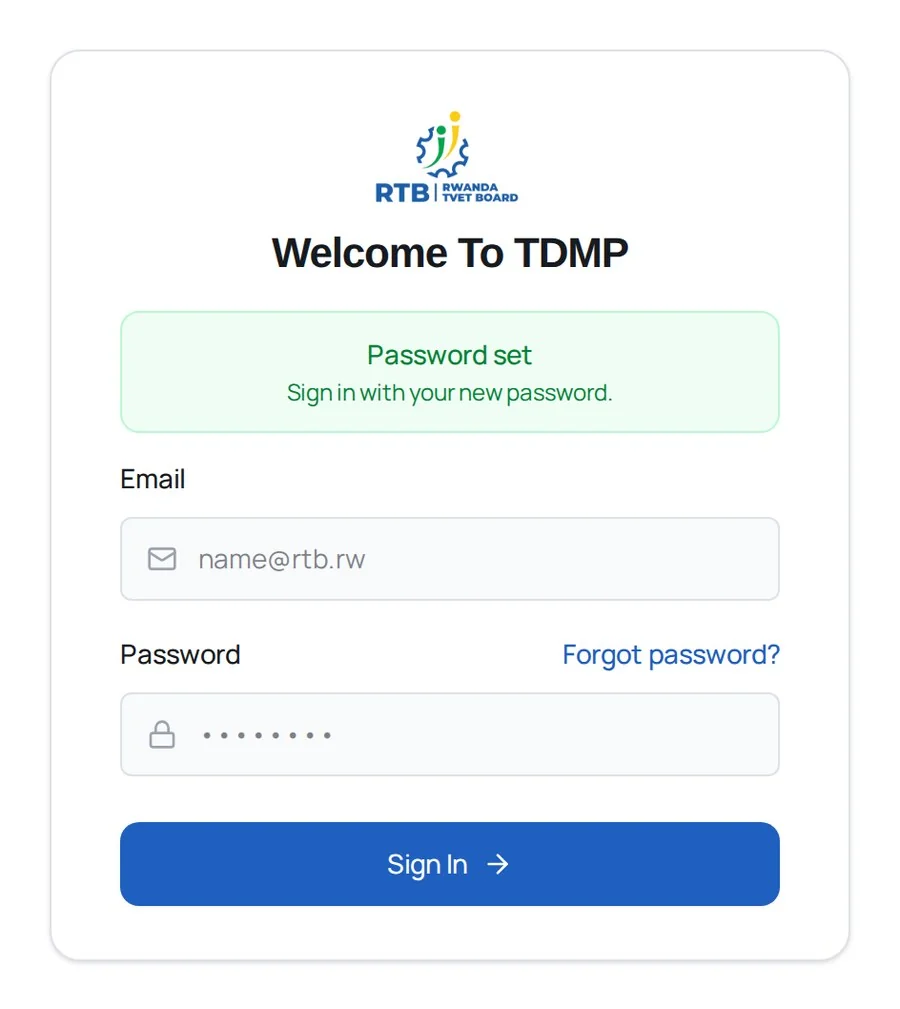
Setting the password sends you back to sign-in with a green “Password set” banner. That banner is the confirmation it worked.
Sign in with your e-mail address and the password you just chose. From here, read Getting started next.