
Ask for a link
Nobody can look your password up and read it back to you, so there is nothing to ask for. Instead you ask TDMP to send you a link, and the link lets you set a new one.
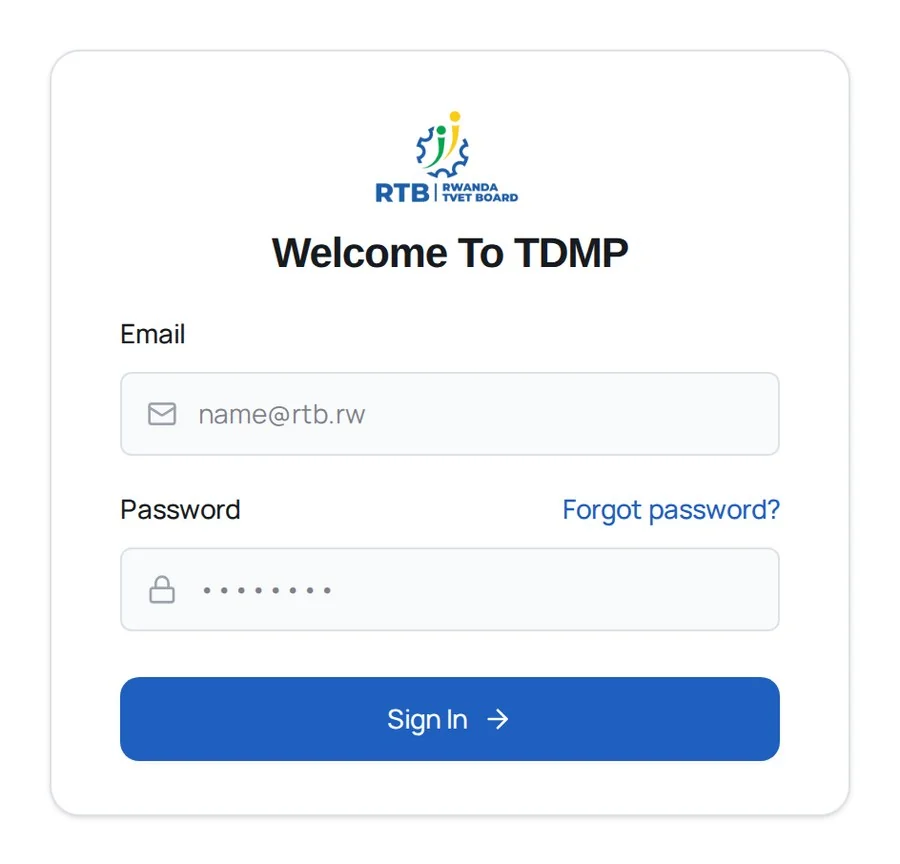
Start on the sign-in screen. “Forgot password?” sits on the right, level with the word Password.
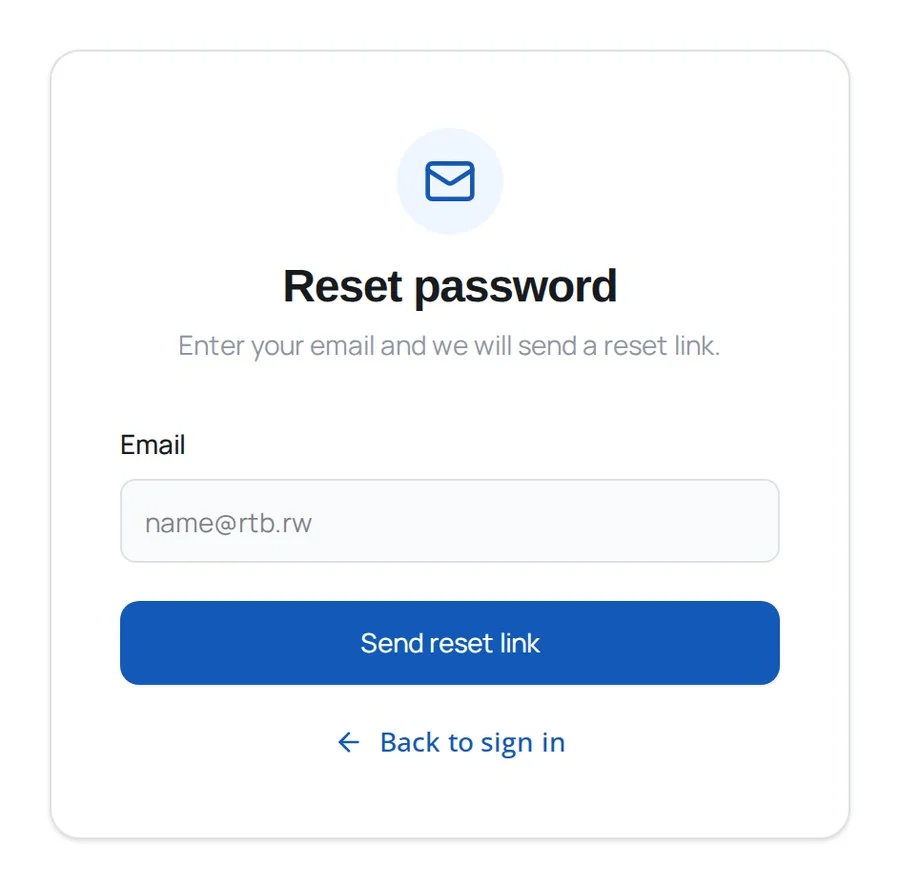
Type the e-mail address you sign in with, then click Send reset link.
What happens next
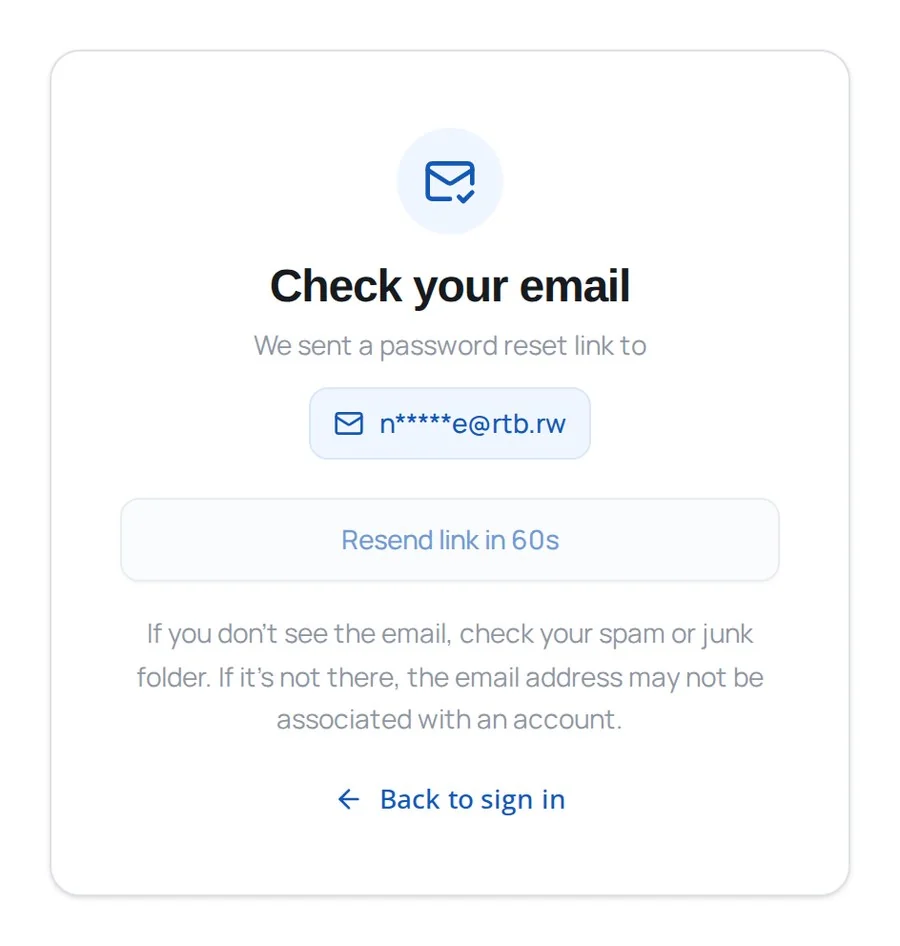
TDMP hides most of your address here on purpose, so nobody reading over your shoulder learns it.
- The e-mail arrives within a few minutes. If it does not, look in your spam or junk folder.
- You can ask for another one, but only after 60 seconds. The button counts down until then.
- You will see this same screen whether or not the address has an account. That is deliberate — it stops a stranger using this page to find out who has one.
Set a new password
Open the link in the e-mail. It brings you to this screen.
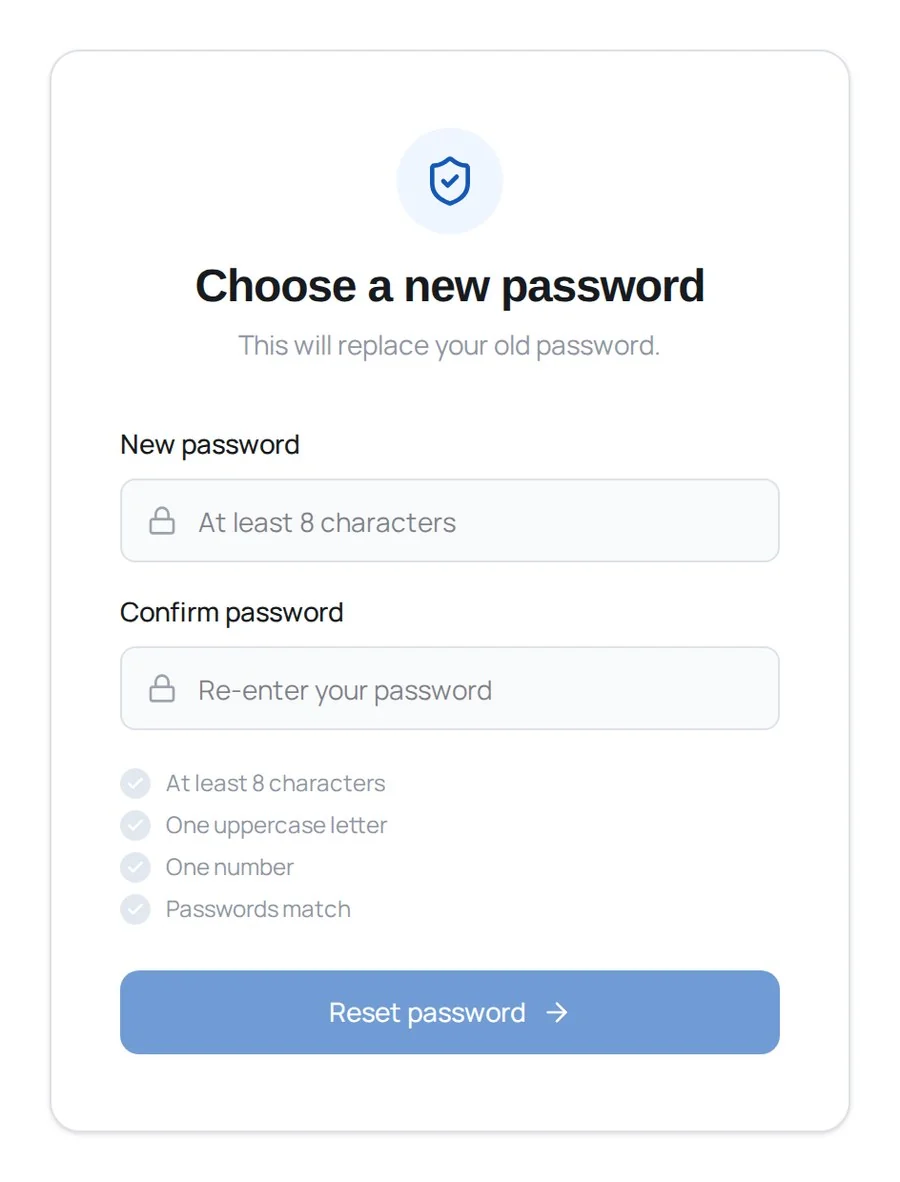
The four rules underneath tick themselves off as you type. The button stays grey until all four are green.
- At least 8 characters
- One uppercase letter
- One number
- Both boxes match
Signing back in
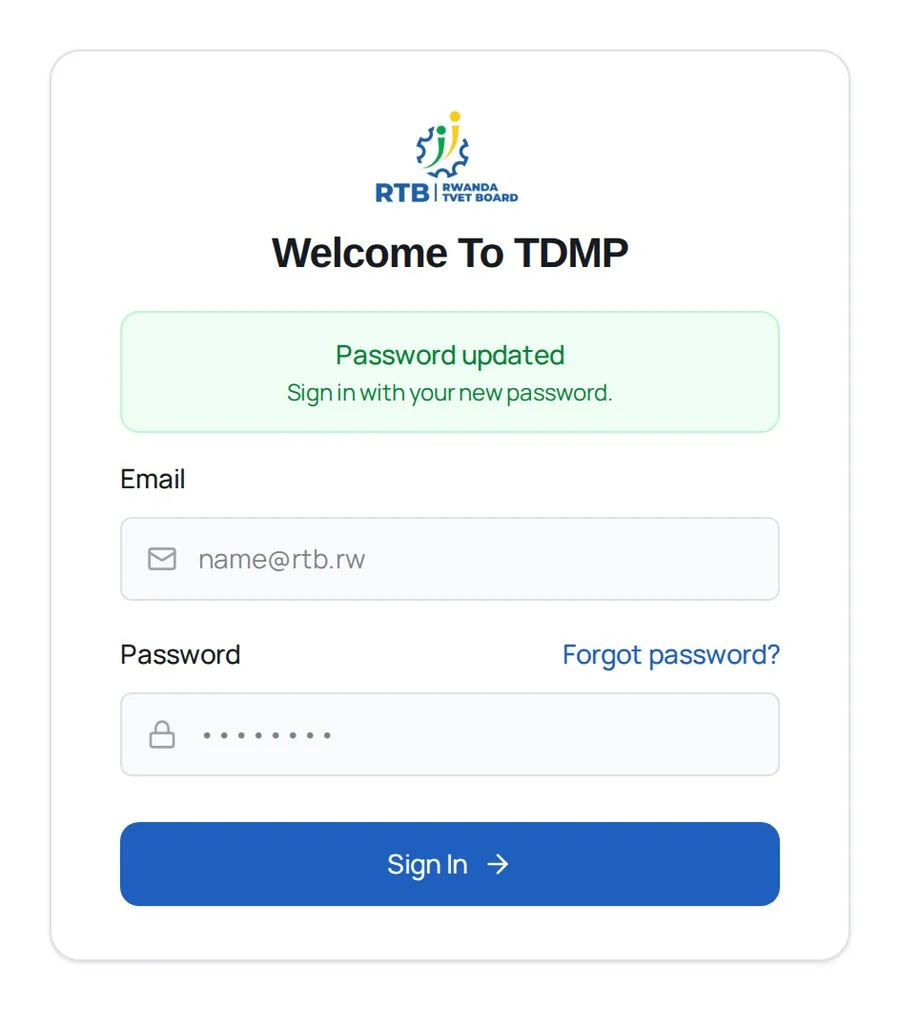
A green banner confirms it. This is the only confirmation you get, so if you do not see it, the password was not changed.
Sign in with the new password. Your old one no longer works anywhere, including the other RTB systems you reach through TDMP.